
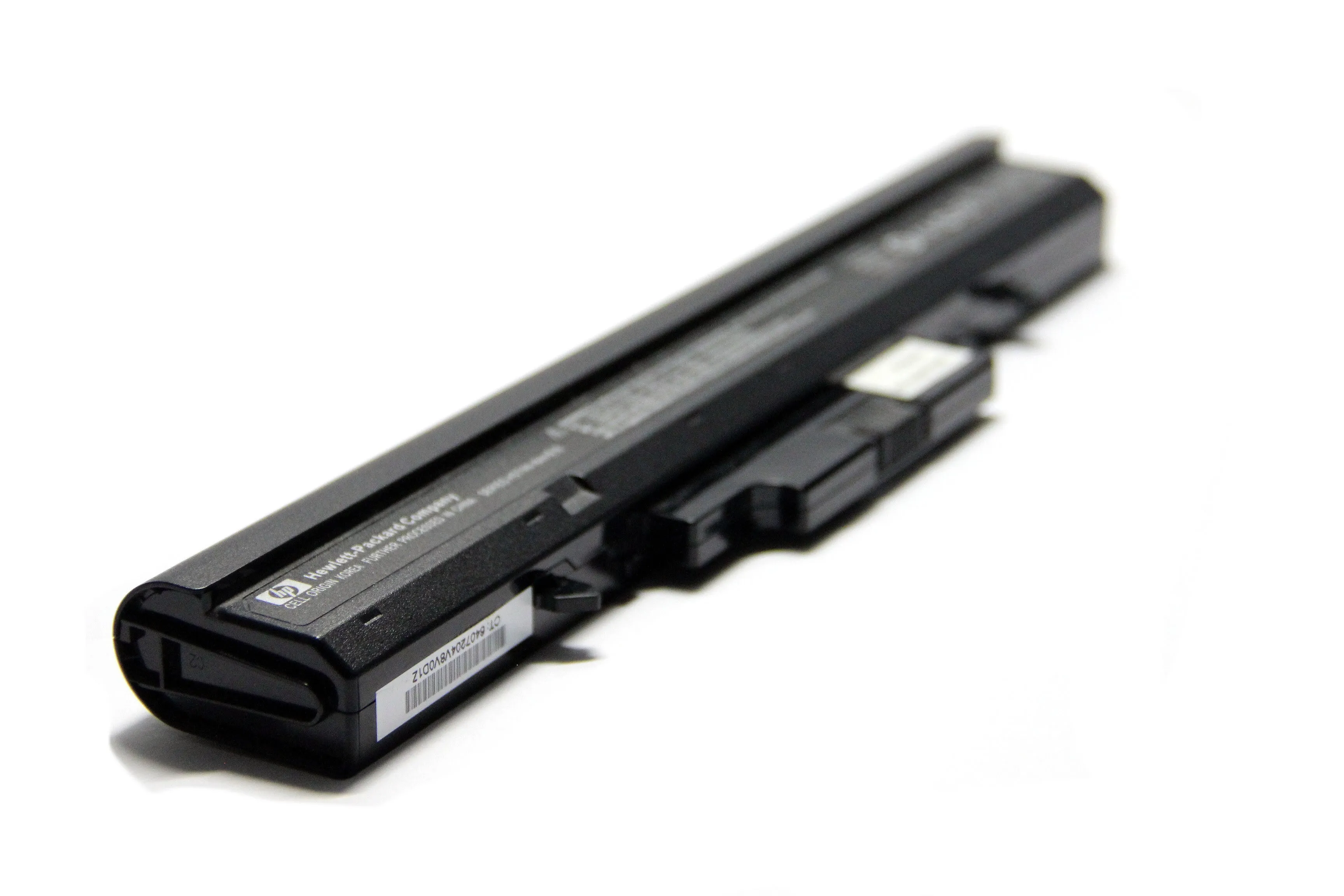
Buying a UK used or second hand laptop shipped directly from abroad is usually the cheapest way to get high quality PC. Although the most typical reason why second-hand buyers feel betrayed, and subsequently suffer financial loss after buying a used laptop is mostly due to battery issues.
Buyers generally rely on information provided through the battery icon located in the system tray. So, even though there may be 100% battery indication, this does not necessarily mean that all 100% corresponds to real-time use. For example, 100% battery could potentially represent thirty minutes of usable battery life.
Understanding the basic principles described in this article will allow you to make intelligent purchasing decisions and minimize unforeseen repair/replace costs associated with a UK used laptop battery.
State of Charge (SoC) vs. State of Health (SoH)
For assessing whether a used laptop has been properly maintained, you must know the difference between State of Charge (SoC), and State of Health (SoH).
- State of Charge (SoC): This is what is shown as a percent on your task bar e.g. 85%. SoC indicates the current charge level against the computers maximum possible capacity at the present moment. So, the maximum capacity can never exceed the original maximum capacity at which it was manufactured.
- State of Health (SoH): This describes the overall condition of a cell or battery pack, comparing it to how healthy it would have been when new. Each time a cell/battery goes through charge/discharge cycles some of its chemical content deteriorates. In doing so, some of its potential storage volume is forever lost.
Even if the UK used laptop battery is very poor with a SoH of 30% and you plug it in to recharge; no matter what, the OS will continue to say it is fully charged at 100%. This simply means that the battery is 100% full of that last 30% capacity.
Now, to determine how good or bad the battery really is you have to go beyond simply looking at the superficial battery indicator on the task bar, and look at the battery diagnostics reported internally within your operating system.
Generating a Battery Report on Your Windows PC
Microsoft provides each version of their windows operating systems with a comprehensive, detailed reporting utility called powercfg.exe. With this utility Microsoft allows users to generate a detailed html document displaying all available details regarding both past & current status of a UK used laptop battery.
Steps to Generate a Detailed Battery Diagnostic Report:
Step 1. Open Command Prompt:
Pressing the windows key + typing cmd will allow you to find command prompt. Right click on command prompt and choose “run as administrator”.
Step 2. Execute Command Prompt:
In the newly opened admin mode command prompt window, enter exactly the following: powercfg /batteryreport. After entering this command press enter.
Step 3. Find Generated Report Document:
Powercfg will print out in your command prompt window where your generated report was saved (usually in either C:\Windows\System32\battery-report.html or C:\Users[YourUserName]\battery-report.html). Locate that directory/file, and using your default internet browser, double click to open the report html document.
After opening your html document navigate to the installed Batteries section. Compare two numbers contained in this section:
- Design Capacity: Total amount of energy a battery was designed to store before leaving the manufacturer (in units of mwh).
- Full Charge Capacity: Amount of energy that your battery can currently store.
Formula for Calculating True Health
Divide full charge capacity by design capacity, and then multiply by 100. Using an example, let us assume the design capacity is 50,000mWh and the full charge capacity is 35,000mWh:
(35000 / 50000) x 100 = 70%
Therefore, according to our formula for calculating true health of 70%, we conclude that 30% of this used laptop battery has died off. An ideal health rating of an import used laptop battery should be over 80%.
Ratings between 70% – 79% can be considered fair but should be expected to deteriorate faster than those with higher ratings. Any rating under 65% will usually need an immediate replacement.
Verifying the Battery Health on MacOS
MacOS comes pre-installed with diagnostic tools to help identify the battery condition within the graphical user interface. So, unlike Windows OS, you don’t need the command line for this.
- Hold down the options key on your keyboard.
- Click on the top left corner of your screen.
- Select system information. When you press the alt/option key, you are replacing “About This Mac” on the menu.
- Scroll down to the Hardware section and click on Power.
Below the header of health information, take note of two values:
Cycle Count: When you use 100% of a battery’s capacity, it is said to have completed a full cycle. For example, discharging 50% of a battery one day, recharging it and then discharging another 50% of it the following day.
However, Modern MacBooks are designed to keep approximately 80% of their original capacity until they reach 1,000 charge cycles. If a previously owned MacBook has a Cycle Count above 700, then the battery life is nearing its end.
Condition: The condition field simply gives a general indicator of how well the battery is functioning. In the case where it shows “normal,” the battery is working as expected. If it’s showing “service recommended”, it means that the battery has degraded significantly and should be replaced.
Using Additional Third Party Diagnostics Tools
Built-in diagnostic tool options are powerful, but there are also some third party tools that can provide more of a user-friendly interface and better monitoring while testing out a UK used laptop battery in person.
Coconutbattery (Mac): Most people consider Coconutbattery to be the gold standard for checking the condition of a MacBook’s battery. Upon opening it instantly reads out design capacity, current capacity and Cycle Count with a simple bar graph indicating battery condition. It will also tell you exactly what day the battery was manufactured. Yes, it’s that detailed.
Hwinfo (Windows): Hwinfo is one of those comprehensive Hardware analysis programs. Under the “smart battery” tab, it shows you real-time data on the wear level of the battery cells, voltage and remaining capacity. The numbers provided will change dynamically based on use of the laptop.
BatteryBar (Windows): BatteryBar is another lightweight utility program designed to replace the default Windows taskbar battery icon. It provides an easy-to-read hover menu displaying exactly what percentage of battery wear exists and accurately estimates time until discharge, based on your current usage.
Real World Stress Test and Physical Inspection
A combination of physical inspection and real world stress test along with software reports will help you determine the true condition of a battery before you buy a fairly used laptop.
Physical stress test: Before finalizing a purchase, boot up the laptop using only the battery. Set the screen brightness to maximum setting (100%) and connect to a wi-fi network. Start streaming a high resolution video from the web browser for 15 minutes.
A good battery should drop between 2% to 7%. If you see a battery drop from 30% to zero or anytime during streaming process (after initial 10 minute period), then the internal lithium ion batteries have failed regardless of the system report showing otherwise.
Physical inspection: If lithium-ion batteries fail internally due to degradation over time they may cause off-gas or over heat. Off gas could cause the pouch inside the laptop containing the battery to swell. Hold your fingers over palm rest area and track pad area.
If the track pad feels stiffer than usual or resists clicks or is slightly elevated above frame of track pad, the swelling of battery below track pad has occurred. Off gas causes swelling which creates serious fire hazard. Therefore, any laptop found to have swelled batteries must be avoided at all costs.
When you learn to look beyond the surface-level battery percentage (and generating system reports, analyzing charge cycles and performing active stress tests), you will know the exact longevity of your second hand laptop easily.
That’s why at Mac&Rig store, we stress-test every one of our UK used laptop battery before they go live on our website, so that buyers can skip all the trouble and make a more informed decision before buying.
So, why not check out our store today, and shop without wahala.